|
Support Links >>>
Learn how to set up and use iCatcher's features to their full potential.
read more...
Many thousands of people around the world use iCatcher software. See iCatcher images
live.
read more...
i-Catcher Wildlife captures fantastic scenes from nature. Have a look at some of
the best.
read more...
Find out about suitable equipment for use with iCatcher, from cameras to lighting,
and more.
read more...
|
alert manager help
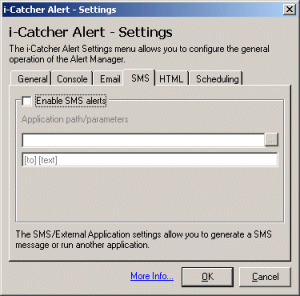 Setting up Short Messaging Service alerts Setting up Short Messaging Service alerts
In the settings dialog is an SMS tab. The fields in this page allow you to configure
SMS alerts for iCatcher Console. To use SMS alerts, first enable them by clicking
on the "Enable SMS alerts" check box. You will then need to enter the
particulars of the SMS software you are using (i-Catcher Alert can not send SMS
alerts itself, it requires an external program).
The application path/parameters field needs to be filled with information regarding
the SMS software you are using. You will need to consult the SMS software's documentation
on sending text messages from the command line, but the typically it will be something
like <program name> <phone number> <message>, for example "SMS.EXE
01234567890 Motion detected".
The SMS.EXE part would go into the "path/parameters" field. Our example
program has no parameters, just the program name. You will need to specify the full
path (for example, "C:\Program Files\Some SMS Software\SMS.EXE") so that
i-Catcher Alert can find it easier.
The field underneath "path/parameters" has two parts, the phone number
(with no spaces, hyphens, etc.), and the message. When you have set up all the details
for your SMS software, click OK to confirm the settings. You will then need to enable
"Send SMS" in the main window of i-Catcher Alert to notify the program
to send SMS messages when motion is detected.
|