|
Support Links >>>
Learn how to set up and use iCatcher's features to their full potential.
read more...
Many thousands of people around the world use iCatcher software. See iCatcher images
live.
read more...
i-Catcher Wildlife captures fantastic scenes from nature. Have a look at some of
the best.
read more...
Find out about suitable equipment for use with iCatcher, from cameras to lighting,
and more.
read more...
|
alert manager help
 Setting up Email alerts Setting up Email alerts
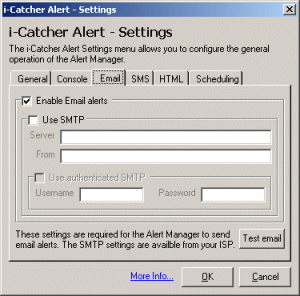
In the settings dialog, is an email tab. From this tab you can configure the settings
associated with sending email alerts. In order to use email alerts, you will need
to check the "Enable Email Alerts" check box.
If you do not have outlook (not outlook express) installed, you will need to specify
SMTP server settings to send email from. To do this, enable the "Use SMTP"
check box.
The first two field specify the SMTP server to use, and what email address i-Catcher
Alert will say the email has come from. Note that some ISPs may not allow you to
send emails from a fake email address, such as alerts@icatcher.monitor so you should
put your real email address in the "From" field. If you do not know the
address of your ISPs SMTP (outgoing email) server, you will need to either ask them,
or search your ISP's website for the relevant information.
Some ISPs allow more flexibility in email sending if you authenticate first. i-Catcher
Alert supports authenticated SMTP connections, and if you use them, you should enable
"Use authenticated SMTP" and enter your username and password for your
ISPs SMTP server into the username and password fields.
Once all the relevant settings are filled in, click on "OK" to confirm
them, and ensure "Send Email Alerts" is enabled in the main window of
i-Catcher Alert.
|